DYMO ID Help
Entering Data
For most label types, you can enter data on the label using several methods or combination of methods:
-
Enter data directly in a text or barcode object on the label — Data added directly to the label will appear in the same location on all labels created in the same label file.
For example,you want to create a series of serial number labels where the first five characters are always the same in the format "9988-nnnnnn". To create this label, you type the first five characters (9988-) on the label preview, then import a list of serial numbers from a spreadsheet into the data grid and map the serial number column to the text box right after the first five characters. In the example below, six serial number labels will be automatically created and each label will have the same first five characters followed by a different serial number.
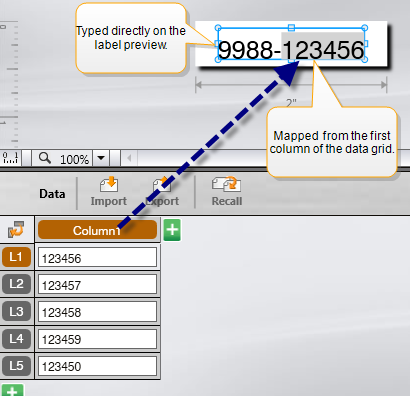
- Enter data in the data grid — Data entered in the data grid that is to be added to the label must be mapped to a text box or barcode object on the label. A new label will be created for each row in the data grid. The data with the gray highlight in the example above is mapped from the data grid. Refer to Mapping Data for more information.
-
Import data from an external file— Imported data will automatically populate the data grid. You then manually map the columns to text boxes or barcode objects on the label. For some label types, when the data being imported matches the number of cells in the label exactly, the data is automatically mapped to the label. For example, patch panel, terminal block, or breaker labels. See the example below.
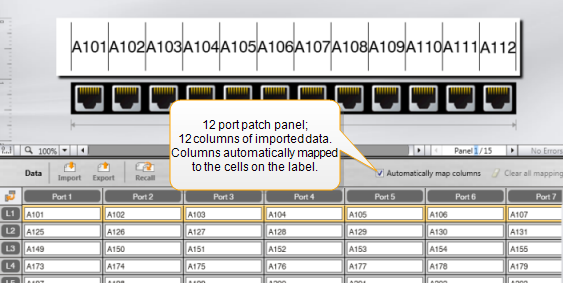
- Remove the check mark next to Automatically map columns and click Clear all mappings to manually map the data.
Data used in one label editor is not automatically available if you switch label applications. In most cases, you can recall the data from the previously edited label to use on the new label. See Recalling Data.
See Also
Was this topic helpful? Send us your feedback

©2015-2026 Sanford, L.P.
Revised: 09/2026