DYMO ID Help
 Importing Data
When you import data from an external file, the data is automatically added to the data grid in the same layout as the source file. For example, a 24-column spreadsheet will be imported as 24 columns in the data grid. You can then map the columns in the data grid to objects on your label.
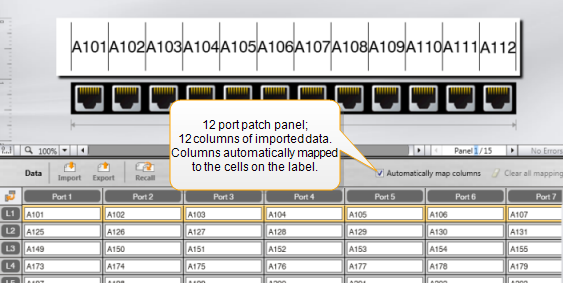
For some label types, such as patch panel, terminal block, and other multi-cell labels, if the number of columns being imported matches the number of cells defined for the label, then the data is automatically mapped to the cells on the label. For example, if a spreadsheet with 12 columns of data is imported into a 12-port patch panel label, then the data will be automatically mapped to the cells on the label.
You can import data from the following types of database files:
- Microsoft Access
- Microsoft Excel
- Text - Comma Separated Values or Tab-delimited files with a *.csv or *.txt extension
- Universal Data Links - See the Microsoft documentation on Universal Data Link (*.UDL) for more information.
When you choose to link the data to the imported data file, the data is automatically updated from the file each time you open this label. Linked data cannot be edited in the data grid.
To import data
-
Click
in the Data editor.The Data import dialog box appears.
- If not already selected, click From a file.
-
Under Select data file, click Browse.
The Open dialog box appears.
-
Select the database file to import, and click Open.
The data from the selected file is displayed in the Preview area.
- To keep the data linked to the file, select the Keep file linked check box.
- If the database file you selected contains more that one sheet or table, select the sheet or table that contains the data you want to import from the Select sheet or table list.
- If the first row in the database file contains column headers, select the Use first row as column headers check box.
- Preview the data to import in the Preview area.
-
Click Import.
The data is imported and displayed in the Data editor.
See Also
Import Data from LinkWare Live
Was this topic helpful? Send us your feedback

©2015-2026 Sanford, L.P.
Revised: 09/2026