DYMO ID Help
About the Data Grid
Most label editors have a data grid below the label preview area.Quick and Pipe marking editors do not have a data grid.
The data grid is arranged in rows and columns similar to a spreadsheet. You can enter data directly into the data grid or you can import data from an external spreadsheet or database file. See Importing Data.
Each column in the data grid can be mapped to a text box or barcode object (or both) on a label. See Mapping Data. Each row in the data grid represents a single label.
Imported data can be edited once in the data grid. However, if the imported data is linked to the source file, the data can only be edited in the source file..
- Data that you enter directly into a text box or barcode object will repeat in the same location on all labels in the label file. Data from the data grid will change with each label.
When you select a row on the data grid, the corresponding label is displayed in the label editor.
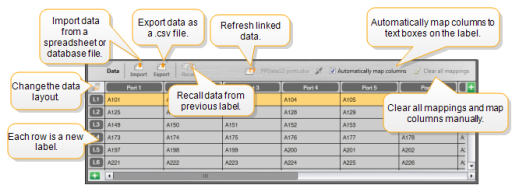
The data grid has the following features:
 Import Import |
Import data from a spreadsheet or database file. See Importing Data. |
 Export Export |
Export data as a .csv file. See Exporting Data. |
 Recall Recall |
Populate the data grid with data from the previous label. See Recalling Data. |
 Change data Change data |
Change the data layout. See Changing the Data Layout. |
 Refresh data Refresh data |
Refresh the data in the data grid from the linked source file. |
| Automatically map columns | When you import data into a multi-cell label and the columns match the number of cells on the label, the imported data is automatically mapped to the text box in each cell. You can map the data manually by deselecting the check box and then dragging columns to text or barcode objects on the label. |
| Clear all mappings | Clears all data mappings to objects in the label preview. |
 Add Add |
Add a column or row to the data grid. |
 Delete Delete |
Delete a column or row from the data grid. |
See Also
Was this topic helpful? Send us your feedback

©2015-2026 Sanford, L.P.
Revised: 09/2026