DYMO ID Help
Touring the Label Editor
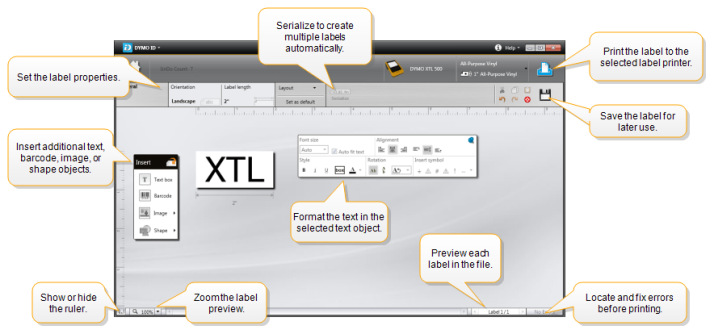
Each label application has its own label editor. Most of the label editors share some of the same features shown here:
- You can pin
 the Formatting toolbar to the label editor so it is always displayed.
The label editor has the following features:
 Serialize Serialize |
Serialize your data to automatically populate multi-cell labels or create mulitple labels. See Using Serialization. |

|
Show or hide the ruler. You can change the units of measure from General Settings. |

|
Zoom in or out on the label in the label preview. |

|
Scroll through multiple labels. Each label will display in the label preview.
|

|
Find and fix any errors on the label. |

|
Print your labels to the selected label printer. |

|
Save the label file as a favorite. |
Standard editing tools are available in the label editor:

|
Cut the selected text or object from the label. |

|
Copy the selected text or object to the clipboard. |

|
Paste the item on the clipboard onto the label. |

|
Undo the last action. |

|
Redo the last undo action. |

|
Clears the label of all data and formatting. Also clears multiple labels. |
See Also
Was this topic helpful? Send us your feedback

©2015-2026 Sanford, L.P.
Revised: 09/2026