DYMO ID Help
Resizing an Object
You can resize an object to better fit within your label design.
When resizing text boxes with Auto fit text selected, the font size will adjust with the object size. Otherwise, the font size remains a fixed point size. A warning will appear when the object is too small for the selected font size.
When resizing a barcode object, a warning will appear when the barcode becomes too small.
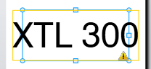
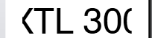
If you attempt to print the label, the text will be truncated as in the example below.
- To set a specific object size, right click the object and enter specific height and width measurements under Size.
To resize an object
-
Select the object.
A blue outline and handles appears when the object is selected.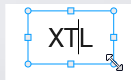
- For text boxes, click anywhere along the blue border.
-
Do one of the following:
- Drag from any corner to resize proportionally.
- Drag the square handle in the middle of a side to resize that side only.
See Also
Was this topic helpful? Send us your feedback

©2015-2026 Sanford, L.P.
Revised: 09/2026